Code Installation Guide
The new code is written in a version of Python desigend so embedded devices, called Micropython. So Micropython must be installed onto the board before the software can be copied onto the board. Both can be acheived from within the Thonny Python editor.
The installation process is:
- Install Thonny,
- Connect to the board,
- Install Micropython onto the board,
- copy the software onto the board.
Install Thonny
Thonny is a code editor designed to work with Python and Micropython. It is available for Windows, Linux and Mac.
Installing Thonny is easy following the Instructions on the Thonny website. On Windows, it just requires downloading the executable installer.
Connect to the board
The board must be connected to the computer via a USB to serial adapter. Simon can provide an adapter, which includes an additional bootmode switch to enable booting into bootloader mode. The cable is only required for programming the board and is not required for normal operation of the board.
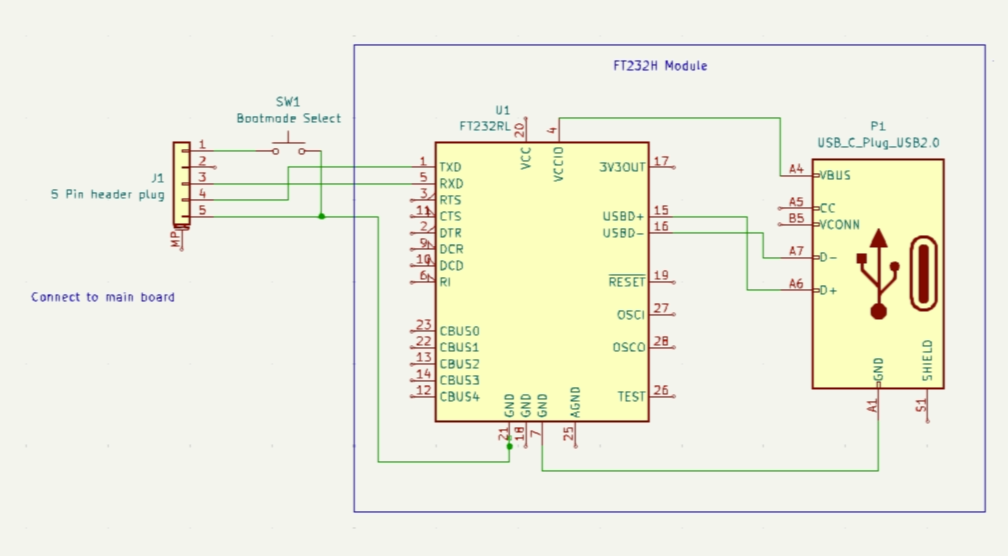
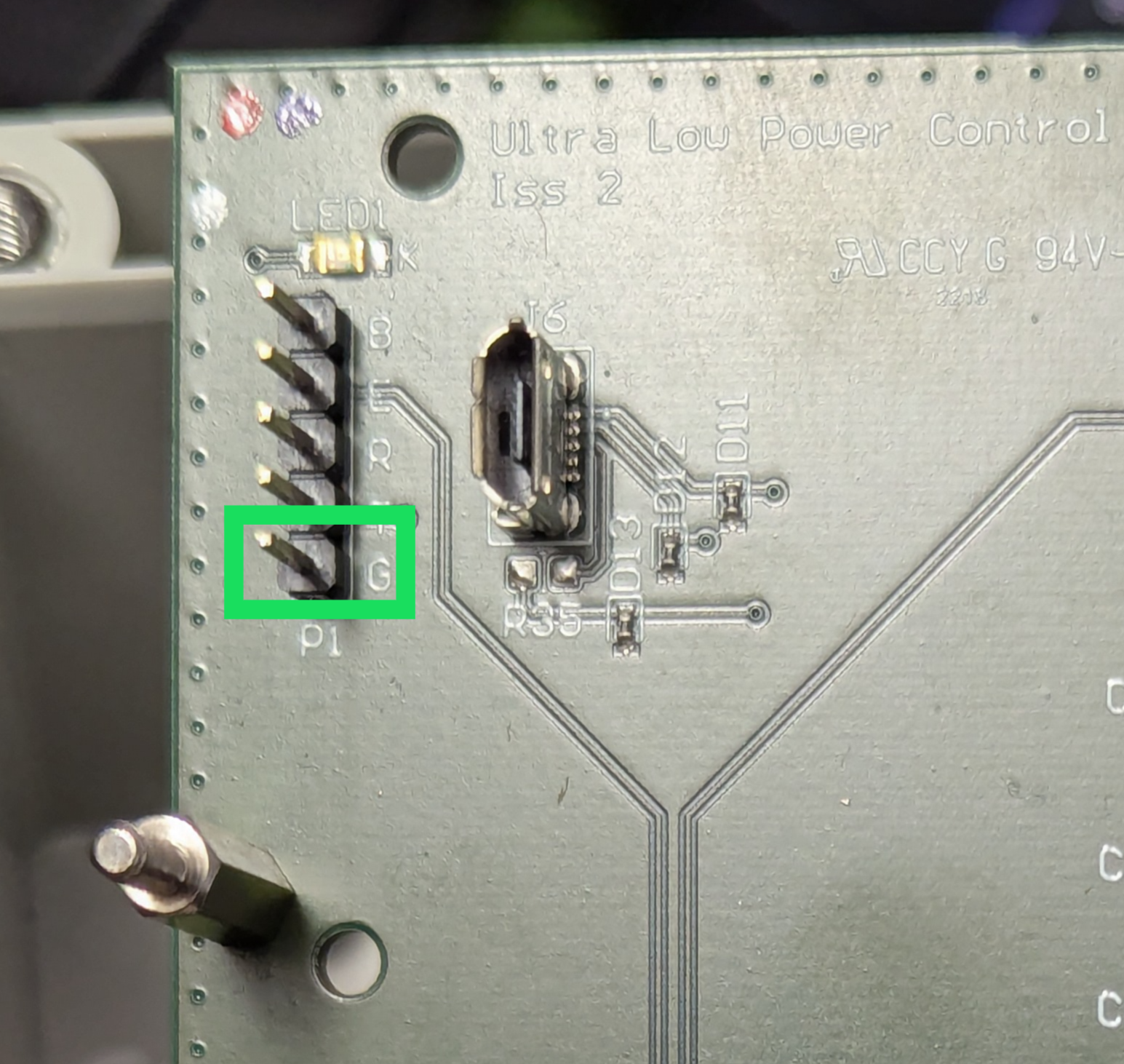
- Connect the cable to the 5 pin header BEWARE This connector must be connected the right way around, but can be inserted either way. The Ground pin is clearly marked on the plug and marked with an G (for Ground) on the pin header - see photo below.
- While pressing the boot switch, turn on the power to the board. Again BEWARE when connecting the power. The 2 spade connectors can be swapped, which will blow the on-board fuse, resulting in needing to send the unit back for repair. Hold the boot switch for 3 seconds after powering up the board.
Install Micropython onto the board
This only needs to be done once per board. It is not required to be installed every time the board is powered up.
- Open Thonny app.
- Connect the board to the computer via USB. If the Shell window, shows something like
MPY: soft reboot
MicroPython v1.24.0 on 2024-10-25; Generic ESP32 module with ESP32
Type "help()" for more information.
>>>
then Micropython is already installed and you can skip to the next step.
- Select Run -> Configure Interpreter
- Click Install or update MicroPython
- Select the correct USB port for the FT232 cable
- Select ESP32, Espressif ESP32 / WROOM, then click Install.
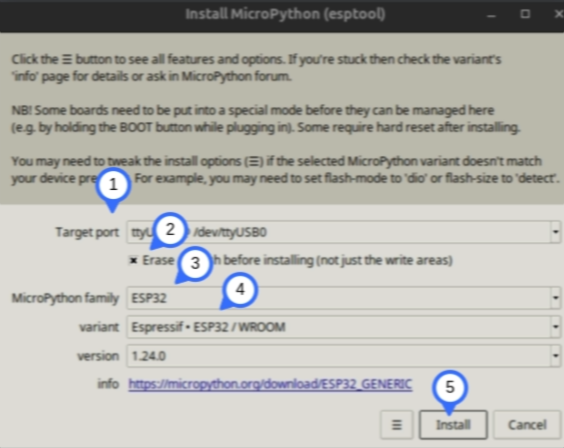
The process will take around 2 minutes. After it completes, power-cycle the board and the Shell window should show Micropython message as shown above.
Copy the software onto the board
- Select File -> Open,
- Select This Computer,
- Navigate to the folder containing the software files.
- Select the file cogent-esp32-firmware.py.
- Select File -> Save as and save it in the same folder.
- Select MicroPython device,
- Type the filename boot.py into the box, then click OK.